EN
EN  DE
DE 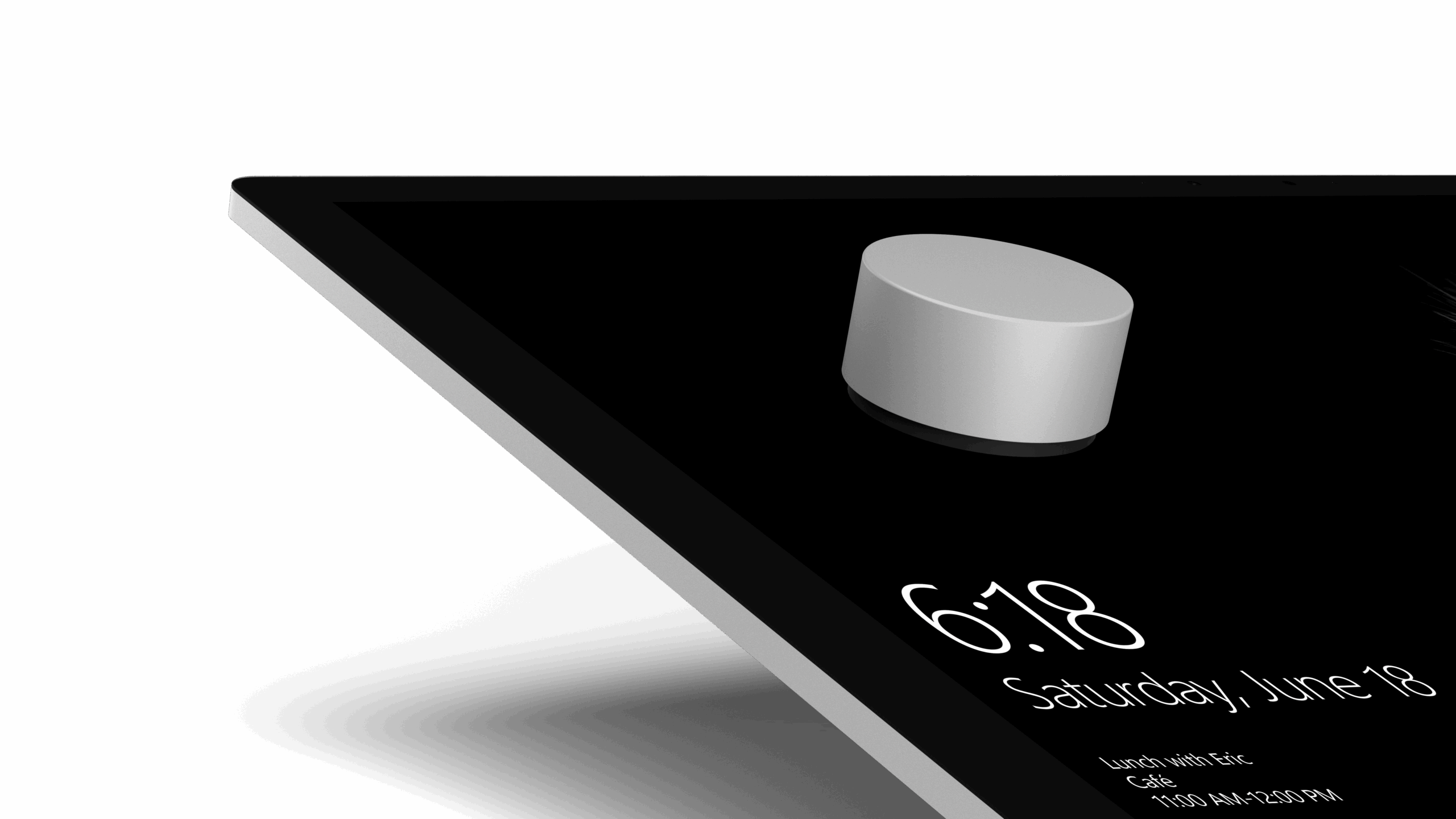
The Surface Dial is a new input device from Microsoft designed to simplify working with graphic and technical applications. It combines the functionality of a rotary dial with that of the Enter key. It was first introduced in the fall of 2016 and is now available in our region.
The Surface Dial is designed to bring features previously only available at specialized workstations (e.g., video editing tables) to a regular PC (minimum requirement: Windows 10 version 1607). On a touchscreen monitor, it's possible to work using only the pen and the Surface Dial, without needing a keyboard.
The basic functions:
- Turn
Angle information that can be used for various functions. By default, these include scrolling, undo (!), and volume control. - Press
Equivalent to the Enter key. - Press and turn
Calls up a special menu that offers the currently available function of the Surface Dial. - Place on the screen
(currently only in conjunction with Surface Studio)
The actions involved depend on the point of impact.
But what interests the developer most? Naturally: How is the device integrated into their application? Here's a short guide on how to do that:
In the first step, the application connects to the controller and registers event handlers for the printing event and for the rotation:
if (!RadialController.IsSupported()) { return; } this.dialController = RadialController.CreateForCurrentView(); this.dialController.ButtonClicked += this.DialControllerButtonClicked; this.dialController.RotationChanged += this.DialControllerRotationChanged;
If the application offers its own function, this extends the dial menu. The icons on the menu item can be generated from a font symbol or an image (not shown here):
var newItem = RadialControllerMenuItem.CreateFromFontGlyph( "Rotate", "xE7AD", "Segoe MDL2 Assets"); newItem.Invoked += this.OnRotateMenuItem;this.dialController.Menu.Items.Add(newItem);
Now all that's missing is the event handler (and the rest of the application):
private void DialControllerRotationChanged( RadialController sender, RadialControllerRotationChangedEventArgs args) { var tempAngle = this.Angle + args.RotationDeltaInDegrees; this.Angle = tempAngle % 360; } private void DialControllerButtonClicked( RadialController sender, RadialControllerButtonClickedEventArgs args) { this.Angle = 0.0; }
The example shown above belongs to a UWP (Universal Windows Platform) application. To integrate the Surface Dial into a traditional desktop application, a few additional steps are required.
Since Microsoft only offers native support for UWP on the Surface Dial, installing the package is essential for interoperability between UWP and Classic Desktop. This involves adding the NuGet package "UwpDesktop" and the interfaces for accessing its functions to the project. Establishing a connection to the Surface Dial requires gathering some information from the window, which is very similar to native Win32 programming. Once the connection is established, the process continues in the same straightforward manner as with the UWP application.
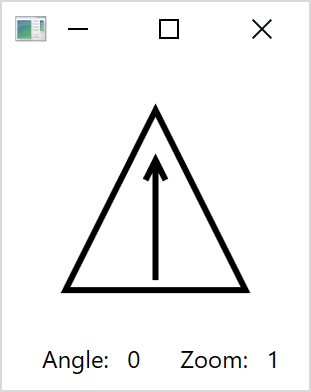
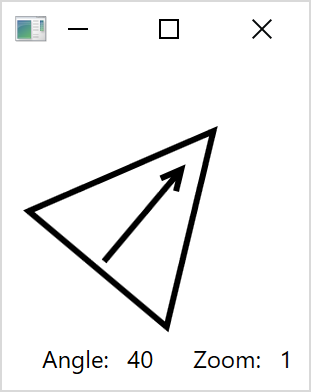
The complete code is in this Example to see.
Further information
MicroConsult expertise in software development
MicroConsult Training & Coaching on the topic of software development
Featured image: Microsoft